
The 3D view
Moving around
Section titled “Moving around”The view always orbits around what is under the pointer, with the vertical always vertical. The wheel zooms towards the pointer (or towards the centre, in Preferences).
| Scheme | Orbit | Pan | Zoom |
|---|---|---|---|
| Tensela (by default) | left button | Shift + left, or middle | right, or wheel |
| Blender | middle | Shift + middle | Ctrl + middle, or wheel |
| Rhino | right | Shift + right | Ctrl + right, or wheel |
| SketchUp | middle | Shift + middle | wheel |
Choose the scheme you are used to in Preferences → Interaction → Mouse in the 3D view.
Looking from a side
Section titled “Looking from a side”- The Views menu of the view: front, sides, above, below, or isometric. The numeric keypad does the same.
- Key 5 switches between perspective and parallel, like a technical drawing.
- F frames everything.
Styles
Section titled “Styles”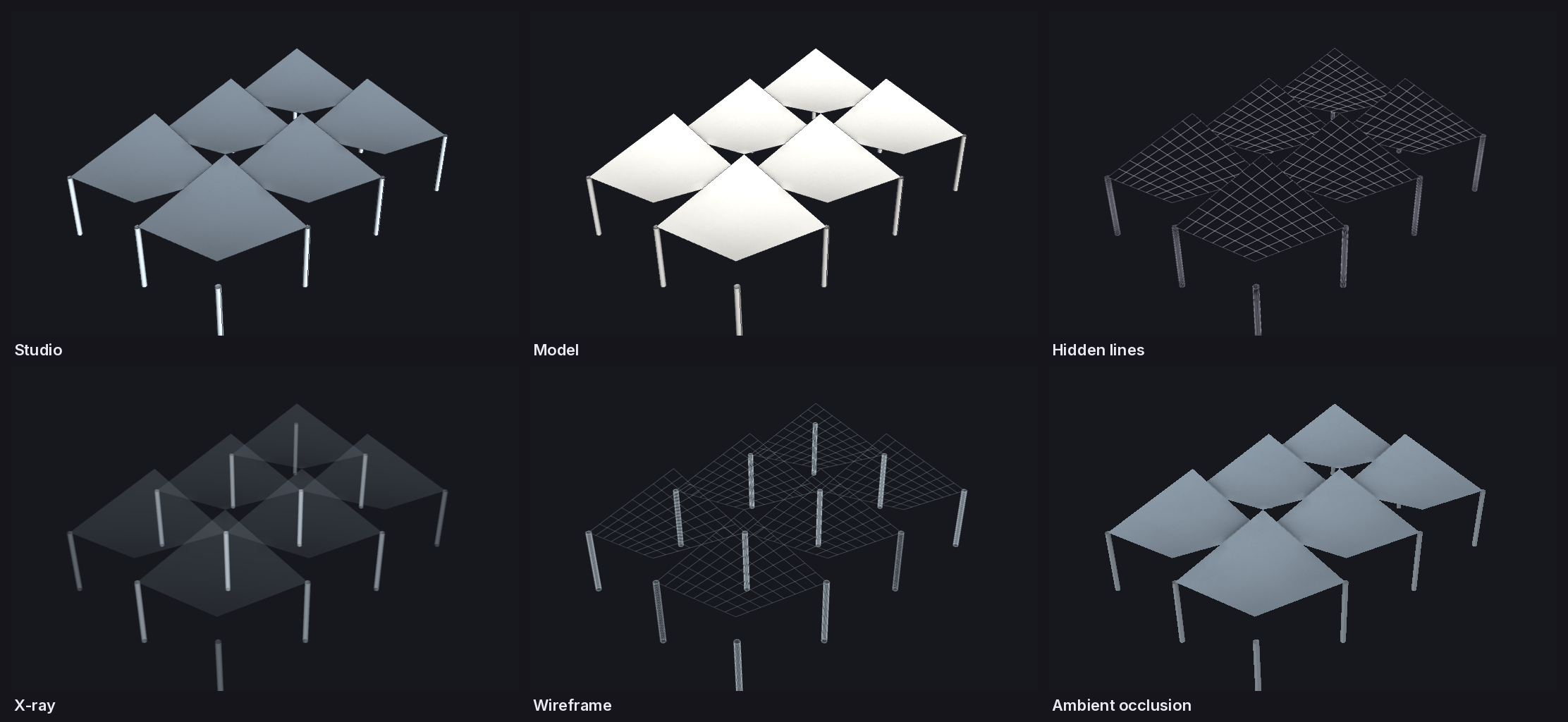
| Style | What it shows |
|---|---|
| Studio | each object with its colour, lit softly, with darker corners and thin outlines |
| Model | everything white with outlines, like a foam board model |
| Matcap | each face lit like a material (plaster, clay, graphite, ceramic): parts close together read one by one |
| Wireframe | only the edges |
| Hidden lines | like a line drawing: what is behind is hidden |
| X-ray | everything semi-transparent |
| Ambient occlusion | solid, with corners and junctions darker, like an overcast day |
The style is changed in the header of the view or with a right-click on it.
What is shown
Section titled “What is shown”Each node that makes geometry has an eye on its card: on, it is shown and exported.
| Keys | What they do |
|---|---|
| H | turn off the chosen ones |
| Shift + H | show only the chosen ones |
| Alt + H | show all |
| Alt + Shift + H | hide all |
| / | isolate the chosen node, framed; again to go back |
Colour and numbers
Section titled “Colour and numbers”In the Node panel, each geometry has its colour and opacity, or is painted by a value (the area of each panel, the sun it gets) with a legend; View → Colour legends shows them in the view, for a capture. Number in 3D writes the number of each element, and Show direction draws which way curves go.